Create a case in Digital Lawyer Diary
Updated
Adding a new case is simple. From the Cases list view, click the "+ Create Case" button and fill out the comprehensive form, which includes sections for Case Details, Contact Information, Additional Information (for fees and timesheets), and Attachments.
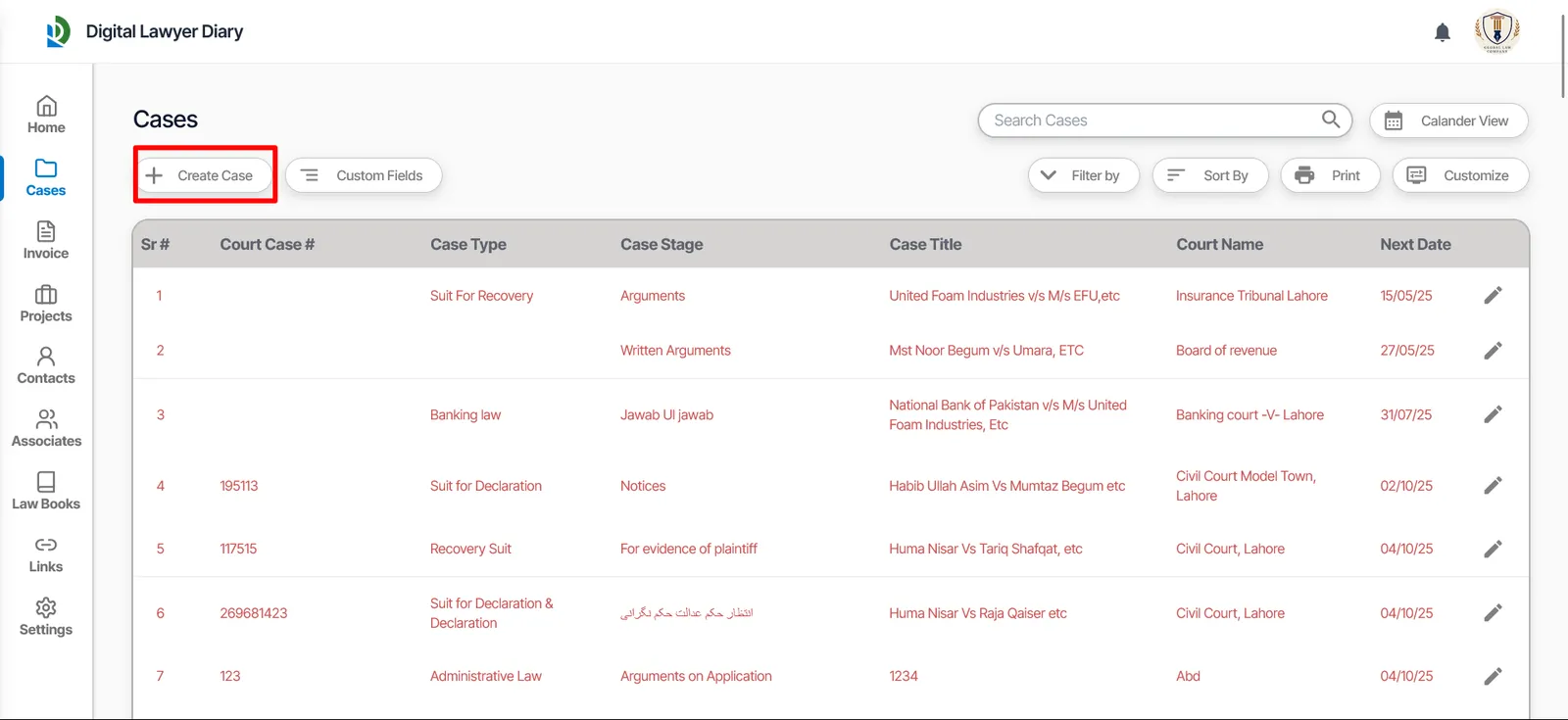
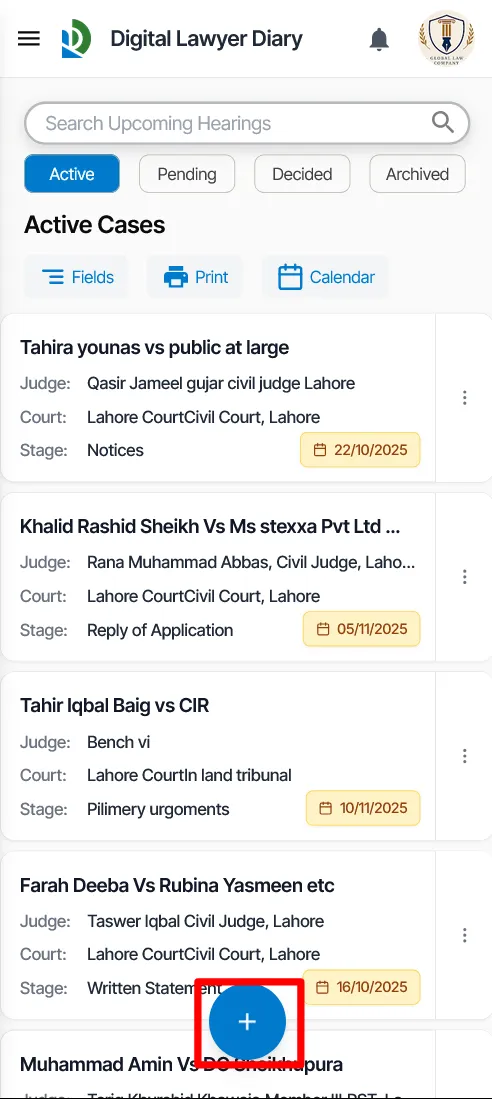
Step 1: Click "+ Create Case"
From the Cases list view, click the "+ Create Case" button.
Step 2: Fill Out the Create Case Form
The form is divided into clear, collapsible sections.
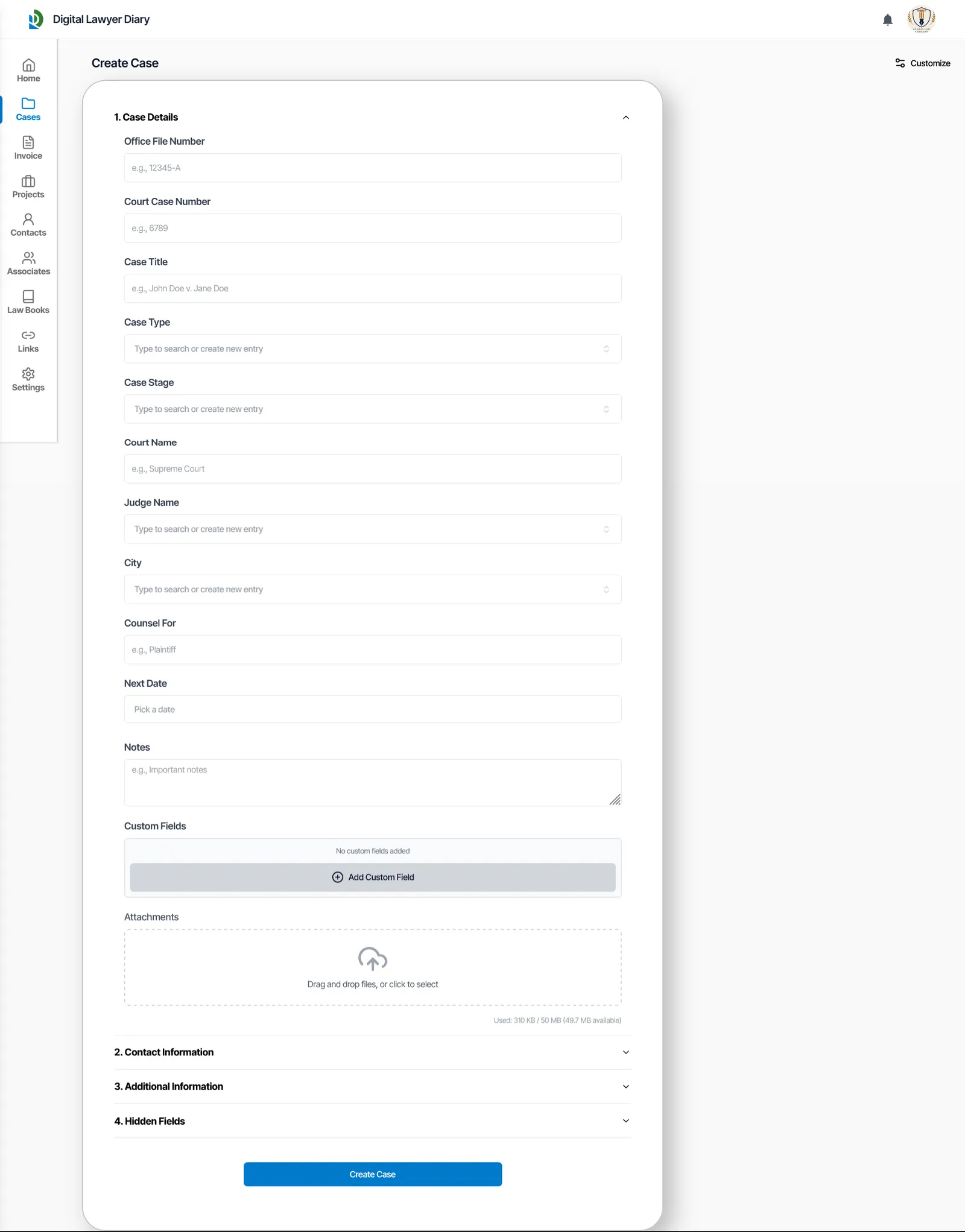
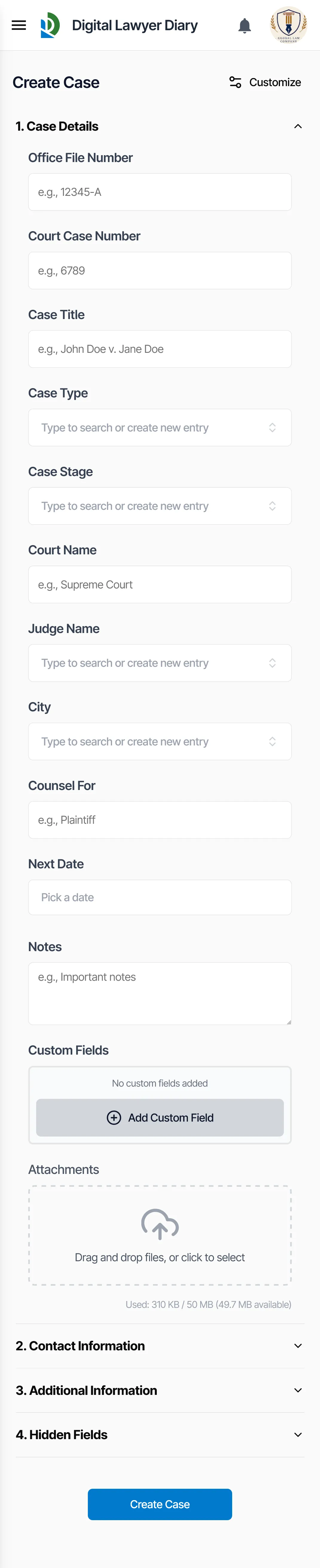
- Case Details: Enter the core information like Office File Number, Court Case Number, Case Title, Type, Stage, Court Name, Judge Name, and Next Date.
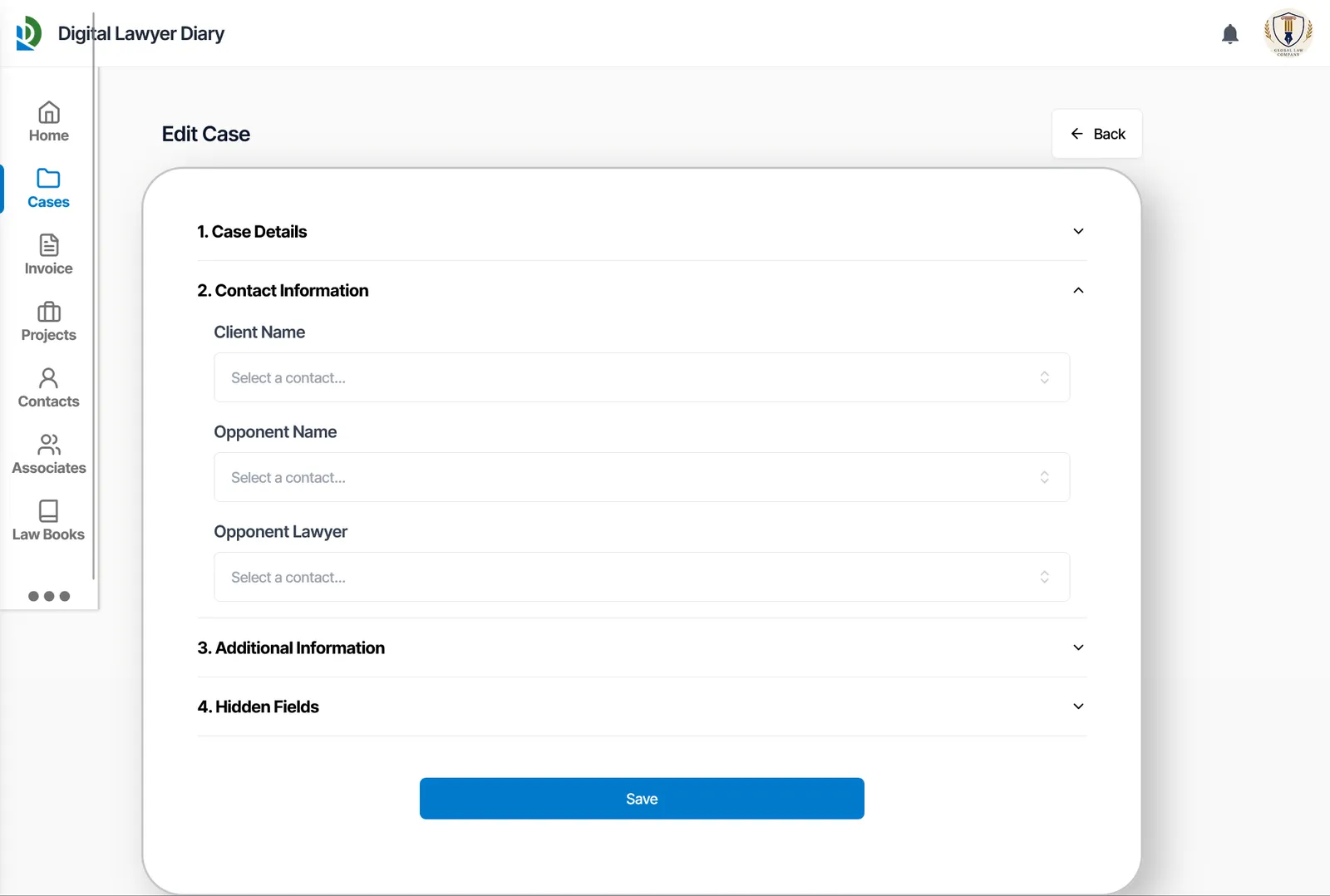
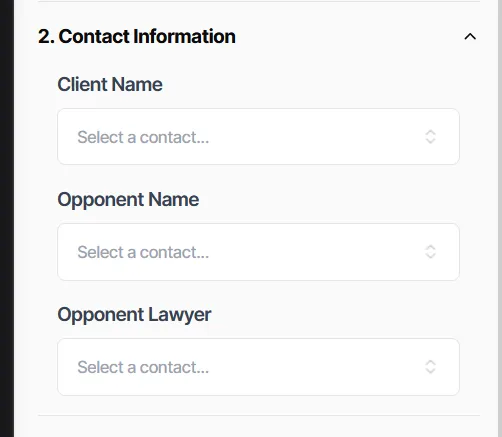
- Contact Information:Link the case to existing contacts for your Client, the Opponent, and the Opponent's Lawyer.
- Additional Information: This section is for financial tracking and time management. You can add Timesheet Entries, set the Case Fee and Charges, and log Payments received. The system will automatically calculate the Total and Remaining Fee.
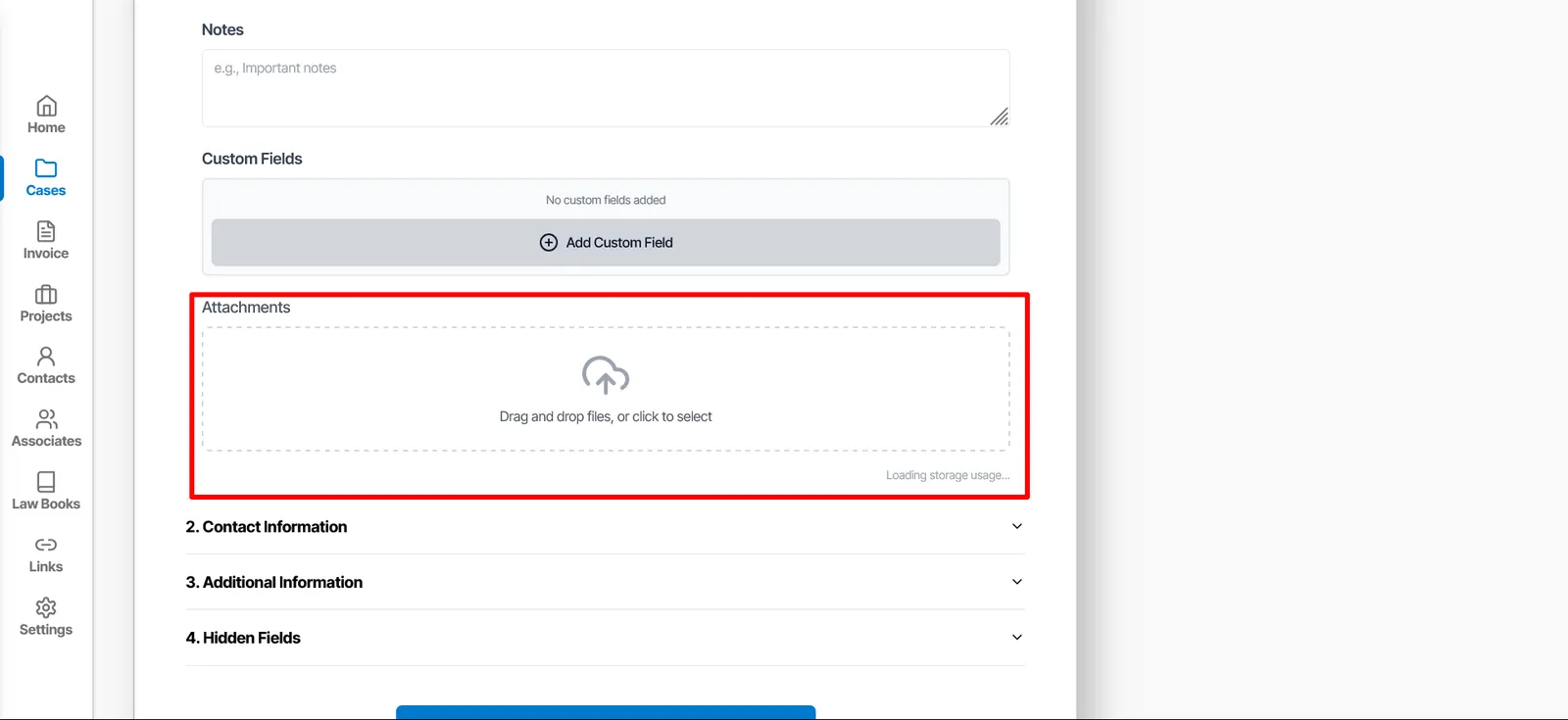
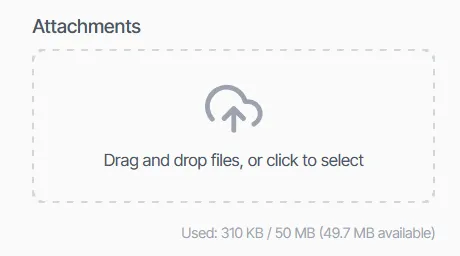
- Attachments: Drag and drop files directly into the upload area or click to select them from your computer. This is perfect for storing petitions, orders, and other relevant documents. (50 MB Limit Per Account) with more option for Enterprise accounts.
Pro Tip: On-the-Fly Entries
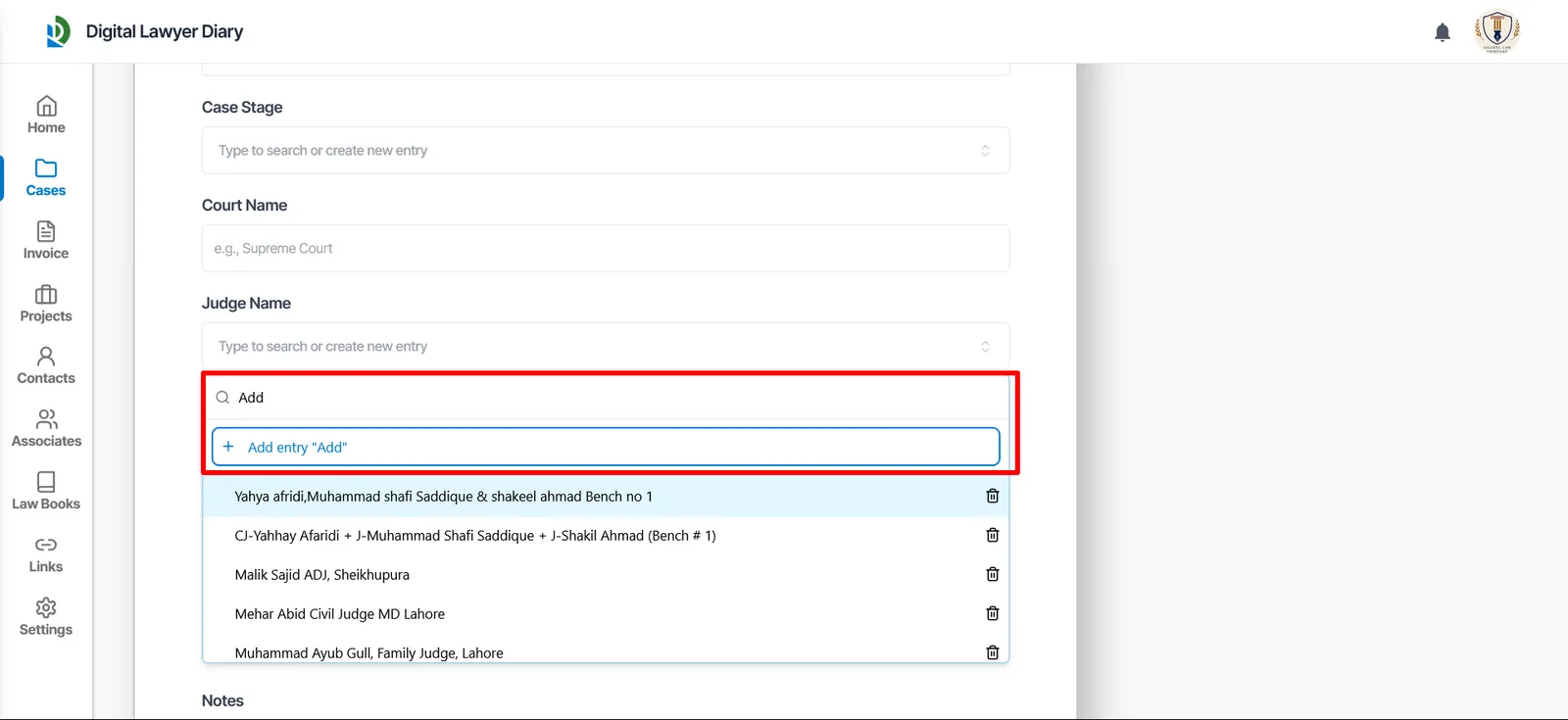
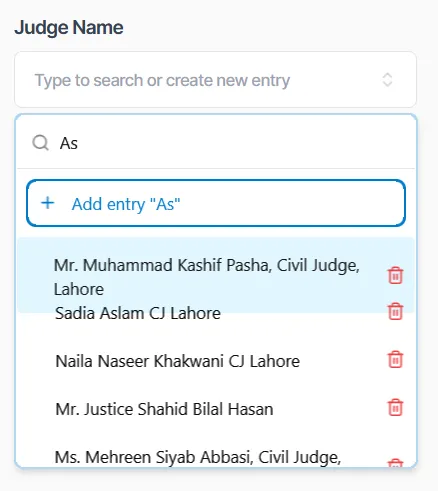
For fields like Case Type, Stage, Judge, etc., you don't need to have everything pre-configured. Simply start typing a new entry (e.g., a new Judge's name). If it doesn't exist, an "+ Add entry" option will appear. Click it to add the new option to your list permanently without leaving the form!
Customize the "Create Case" Form
Your practice is unique, and so are your data needs. You can customize the Create Case form to hide fields you don't use.
- While on the "Create Case" page, click the Customize icon in the top-right corner.
- A "Customize Form" modal will appear. Uncheck any fields you don't need.
- Click "Save changes". The form will now be streamlined to your preference.
Step 3: Create the Case
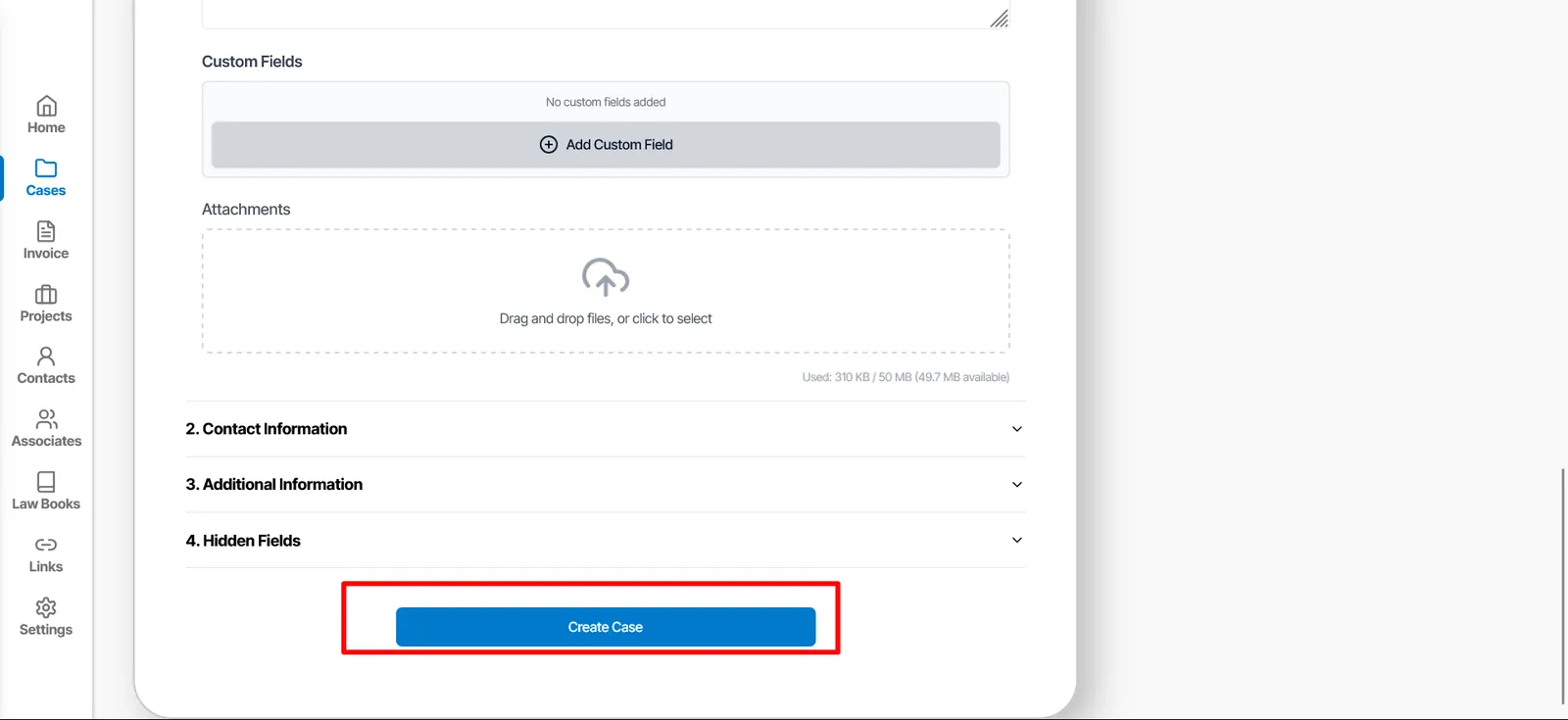
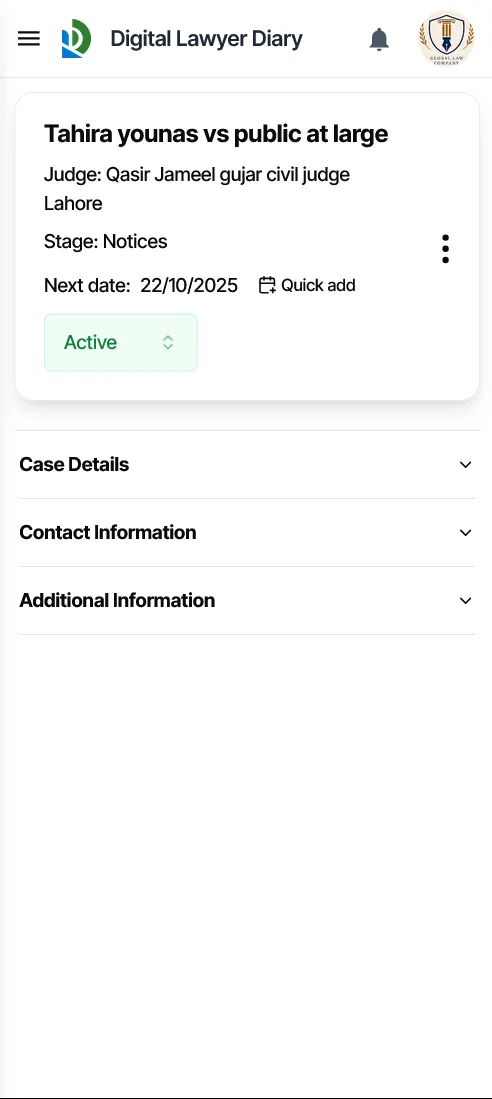
Once all the information is entered, click the blue "Create Case" button at the bottom. You will be taken directly to the new case's "Case View" page.